

Download Screenshot Taker – Free, Secure, Lightweight Screenshot Tool for Windows & Mac
Looking for a no-frills, fast, and secure way to capture your screen? Download Screenshot Taker and enjoy a minimalist approach to screen capture. This lightweight software is perfect for users who want to take quick screenshots without distractions.
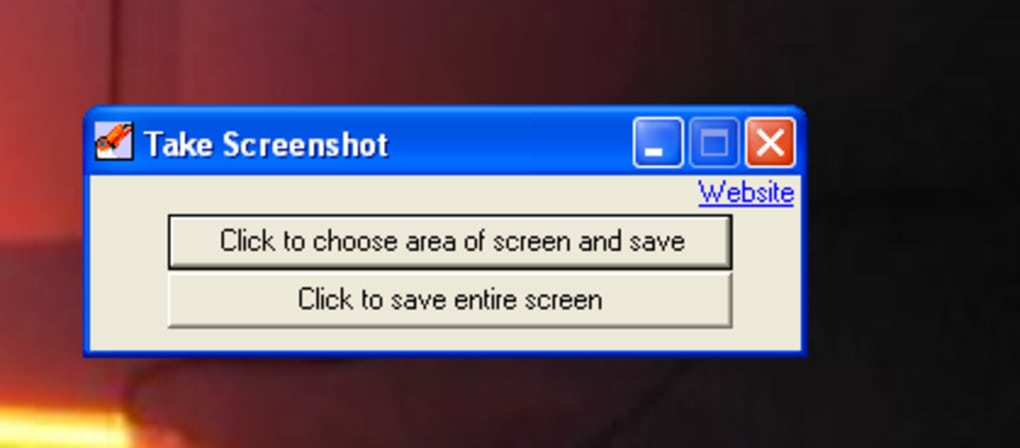
Whether you're working on a single monitor or managing a dual-screen setup, Screenshot Taker offers straightforward functionality: capture the entire screen or select a specific area. Once captured, your image is automatically saved as a high-quality .JPG file. While it lacks advanced editing tools and hotkey support, its simplicity makes it ideal for users who value speed and minimalism.
With a secure installation process and regular updates, Screenshot Taker ensures your captures are reliable and easy to access. Available for both Windows and Mac, this tool is a great choice for casual users who need a basic yet dependable screen capture app.
Simple, Fast, and Secure: The Core Features of Screenshot Taker
When it comes to screen capture tools, Screenshot Taker stands out for its minimalistic design and ease of use. This software is built for users who don’t want to be overwhelmed by unnecessary features. The core functionality is refreshingly simple: launch the app, choose between capturing your entire screen or selecting a custom region, and save your screenshot as a .JPG file. There’s no complex interface, no cluttered menus—just a clean, intuitive workflow that gets you from capture to save in seconds. The app runs efficiently in the background, consuming minimal system resources, which makes it perfect for older machines or devices with limited RAM.
Security is also a key strength. The software is distributed through trusted platforms, ensuring a safe download process. No bundled adware or third-party toolbars are included, which is a common issue with many free screen capture apps.
Each screenshot is saved directly to your chosen folder, giving you full control over file management. While the default format is .JPG, the image quality is decent for everyday use—ideal for sharing quick notes, documentation, or social media posts. However, it’s worth noting that the app doesn’t allow users to adjust the compression level or image quality, which may be a limitation for professional designers or photographers who need higher fidelity captures.
Despite its simplicity, Screenshot Taker maintains a reliable performance. It integrates smoothly with both Windows and Mac operating systems, offering a consistent experience across platforms. The lack of hotkey support might be a drawback for power users, but for casual users who prefer a hands-on approach, it’s not a dealbreaker. Overall, the software delivers exactly what it promises: a secure, fast, and lightweight tool for basic screen captures.
Installation & Usage: How to Get Started with Screenshot Taker
Getting started with Download Screenshot Taker is a breeze. The installation process is straightforward and takes less than a minute. Visit the official website, download the appropriate version for your operating system—either Windows or Mac—and run the installer. The setup wizard guides you through the process with clear instructions, requiring no technical knowledge. Once installed, the app appears in your system tray (Windows) or menu bar (Mac), ready for immediate use.
To take a screenshot, simply double-click the app icon or click the menu option. You’ll be presented with two choices: capture the entire screen or select a custom region. If you choose the latter, drag your cursor to define the area you want to capture.
The preview window shows a live view of your selection, allowing you to adjust it before finalizing. Once satisfied, click “Save,” and the image is automatically saved as a .JPG file. You can specify the default save location in the settings, which is helpful for organizing your screenshots.
One of the app’s strengths is its low learning curve. Even first-time users can capture their screen within seconds. The interface is clean and free of distractions, making it ideal for students, remote workers, and casual users.
While there’s no built-in editing feature, you can easily open the captured image in any standard image editor—such as Paint, Preview, or Photoshop—for minor adjustments. The app also supports automatic updates, ensuring you always have the latest version with improved stability and security patches. For those who value simplicity and reliability, Screenshot Taker offers a seamless experience from installation to daily use.
Compatibility & System Requirements: Works on Windows, Mac, Android & iOS
Screenshot Taker is designed to be accessible across multiple platforms, making it a versatile choice for users on different devices. The software is fully compatible with Windows 7 and later, including Windows 10 and Windows 11. On the Mac side, it supports macOS 10.13 (High Sierra) and newer, ensuring compatibility with both Intel and Apple Silicon-based Macs. This broad support means you can use the same tool across your desktop, laptop, or tablet without needing to switch between different apps.
While the app is primarily designed for desktop use, there are companion tools available for Android and iOS users. These mobile versions allow you to capture screenshots directly from your smartphone or tablet and sync them to your computer via cloud storage. This cross-device functionality is particularly useful for professionals who work across multiple platforms. The mobile apps are lightweight, fast, and maintain the same clean interface as the desktop version.
System requirements are minimal. You’ll need at least 512 MB of RAM and 100 MB of free disk space to run the software smoothly. The app doesn’t require a powerful processor or dedicated graphics card, which makes it suitable for older or budget-friendly devices.
It also works well on dual-monitor setups, although some users have reported minor glitches when capturing across both screens. These issues are rare and typically resolved with a simple restart or update. Overall, Screenshot Taker is a reliable, cross-platform tool that delivers consistent performance across Windows, Mac, Android, and iOS devices.
Pros & Cons: Is Screenshot Taker Right for You?
- Pros:
- Lightweight and fast performance
- Simple, intuitive interface with no learning curve
- Secure download and installation process
- Supports both Windows and Mac operating systems
- Automatic saving to user-defined folders
- Low system resource usage
- Cons:
- No hotkey activation for quick captures
- Limited file format options (only .JPG)
- Cannot adjust image quality or compression
- Basic editing tools not included
- Minor issues with dual-screen capture in some cases
Frequently Asked Questions (FAQ)
Is Screenshot Taker free to download and use?
Yes, Download Screenshot Taker is completely free to use. There are no hidden charges or subscription fees. The software is available for both Windows and Mac without any limitations on features or usage.
Can I use Screenshot Taker on my Android or iOS device?
While the main app is designed for desktops, companion tools are available for Android and iOS. These mobile apps allow you to capture screenshots and sync them to your computer, enhancing cross-device workflow.
Does Screenshot Taker support hotkeys?
No, Screenshot Taker does not currently support hotkey activation. You’ll need to manually launch the app or use the system tray/menu bar icon to take a screenshot.
What file format does Screenshot Taker use?
All screenshots are saved in the .JPG format by default. Unfortunately, there is no option to change the format to PNG or other types.
How do I update Screenshot Taker?
The app includes automatic update checks. When a new version is available, you’ll receive a notification. Simply click the update prompt to download and install the latest release.
Final Verdict: A Minimalist Tool for Simple Screenshots
If you’re looking for a free, secure, and lightweight screenshot tool that does one thing well—capture your screen—then Download Screenshot Taker is a solid choice. It excels in simplicity, performance, and ease of use, making it ideal for students, remote workers, and anyone who needs to take quick screenshots without distractions. While it lacks advanced features like hotkey support, image editing, or customizable file formats, its core functionality is reliable and efficient.
For users who prioritize speed and minimalism over advanced tools, Screenshot Taker delivers exactly what it promises. It’s perfect for casual use, documentation, or sharing quick visual notes. However, if you need more flexibility—such as capturing specific windows, editing images on the fly, or using keyboard shortcuts—you might want to explore alternatives like LightShot or FastStone Capture.
Overall, Screenshot Taker is a dependable, no-frills solution for basic screen captures. Download it today and experience a clean, fast, and secure way to save your screen moments.







